Teleoperation Viewer
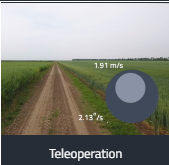
The Teleoperation Viewer combines a live video feed with a virtual joystick so operators can manually drive the robot from the Monitoring page.
Use it for supervised interventions, remote inspections, or bringing a robot to a safe state.
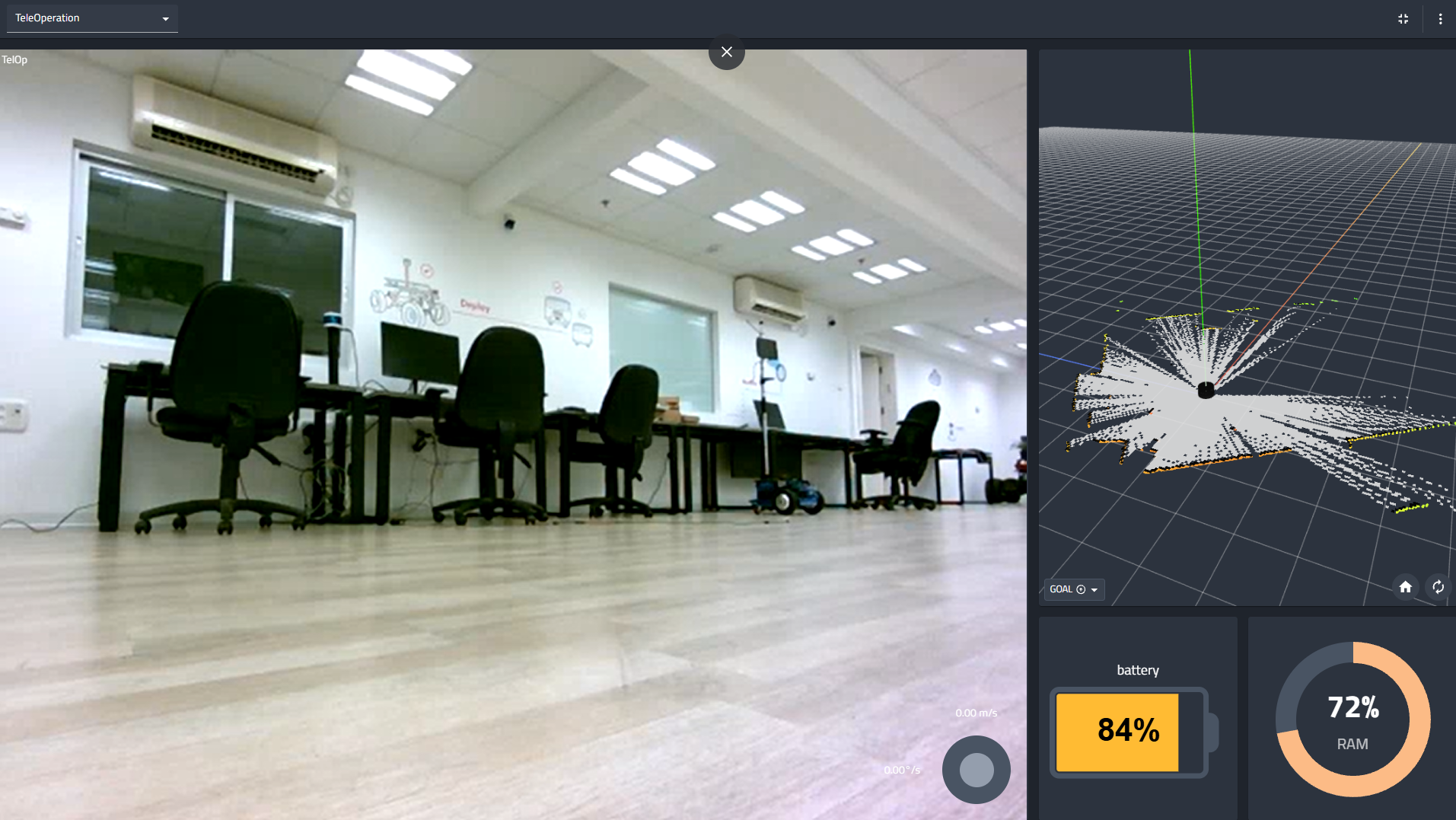
Key Capabilities
- Supports Ackermann and Twist steering models.
- Dual Connection Modes: Choose between gRPC and WebRTC for video streaming.
- Video Transformation: Flip or rotate the camera feed to match the operator's perspective.
- Flexible Control: Toggle between an on-screen Virtual joystick or a physical controller.
- Safety Limits: Configurable velocity limits and auto-repeat idle states to prevent runaway behaviors.
- Automatic control model inference from the underlying message type.
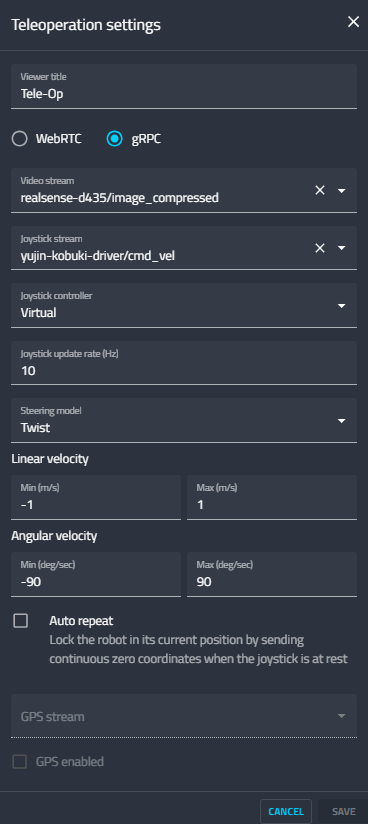
Configuration
Connection & Video
- Connection Mode: Select the streaming protocol:
- gRPC: Standard streaming.
- WebRTC: Low-latency streaming (recommended for unstable networks).
- Video Stream: Choose the camera topic to display.
- Transform: Adjust the video orientation if the camera is mounted differently:
- Flip: Horizontally or Vertically.
- Rotate: Rotate the feed by 90-degree increments.
Control Settings
- Joystick Stream: Select the command topic (e.g.,
/cmd_vel) used to control the robot. - Joystick Update Rate (Hz): Set the frequency at which command messages are published.
- Joystick Controller: Select the input method (e.g., Virtual for the on-screen UI).
Limits & Behavior
- Linear/Angular Velocity: Set the Minimum and Maximum speed limits to ensure safe operation.
- Axis Configuration:
- Inverse joystick: Swaps forward/backward controls.
- Mirror joystick: Swaps left/right controls.
- Auto-repeat idle state: When checked, the system sends continuous zero-velocity commands when the joystick is released. This locks the robot in place rather than letting it drift or timeout.
GPS
- GPS Stream: Select a GPS topic to overlay position data.
- GPS Enabled: Toggle the GPS overlay visibility.