iFrame Viewer
The iFrame Viewer embeds external or robot-served web content directly inside the Monitoring Page.
Use it to surface existing dashboards, web tools, or custom UI pages alongside the standard viewers.
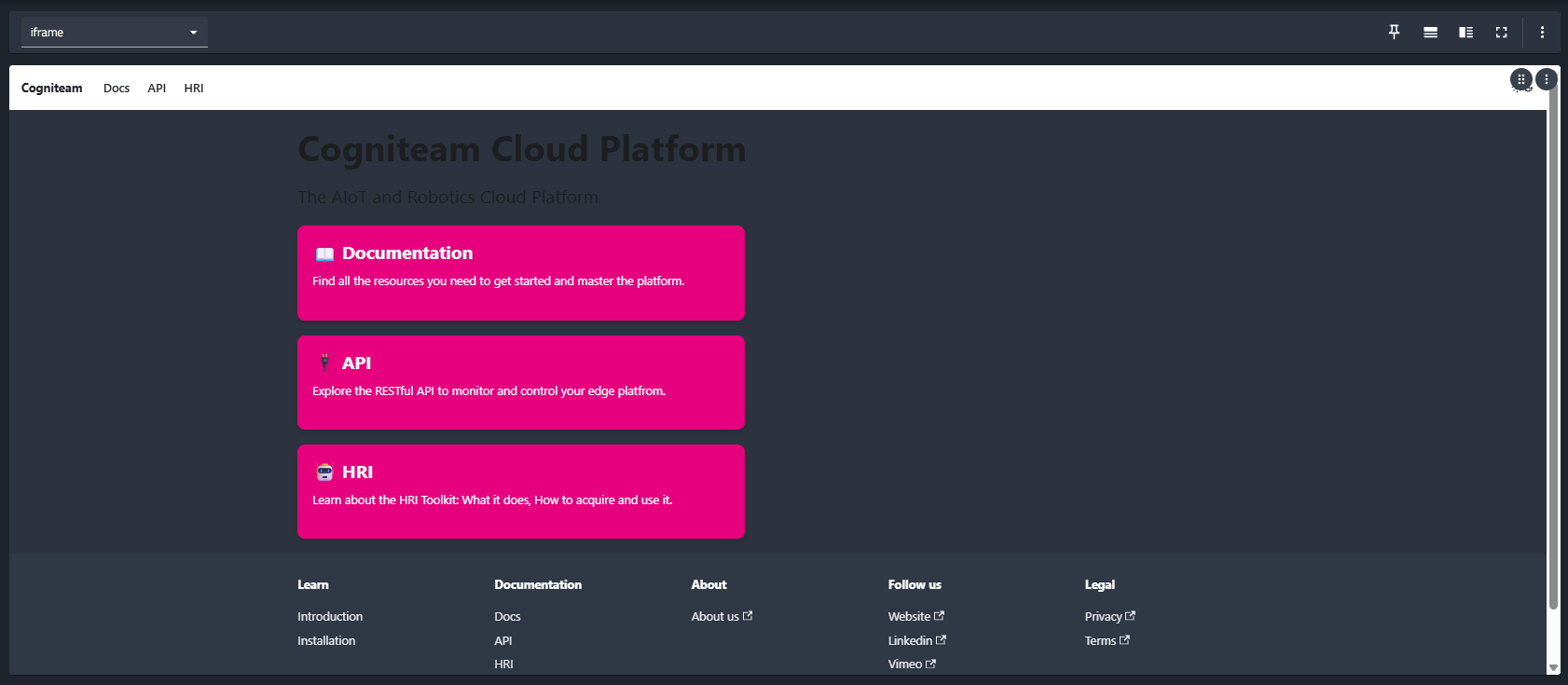
Behavior
- Cloud: Use the organization-defined route for iFrame content.
- Local / offline: When possible, serve iFrame content from a route exposed by the robot.
Configuration
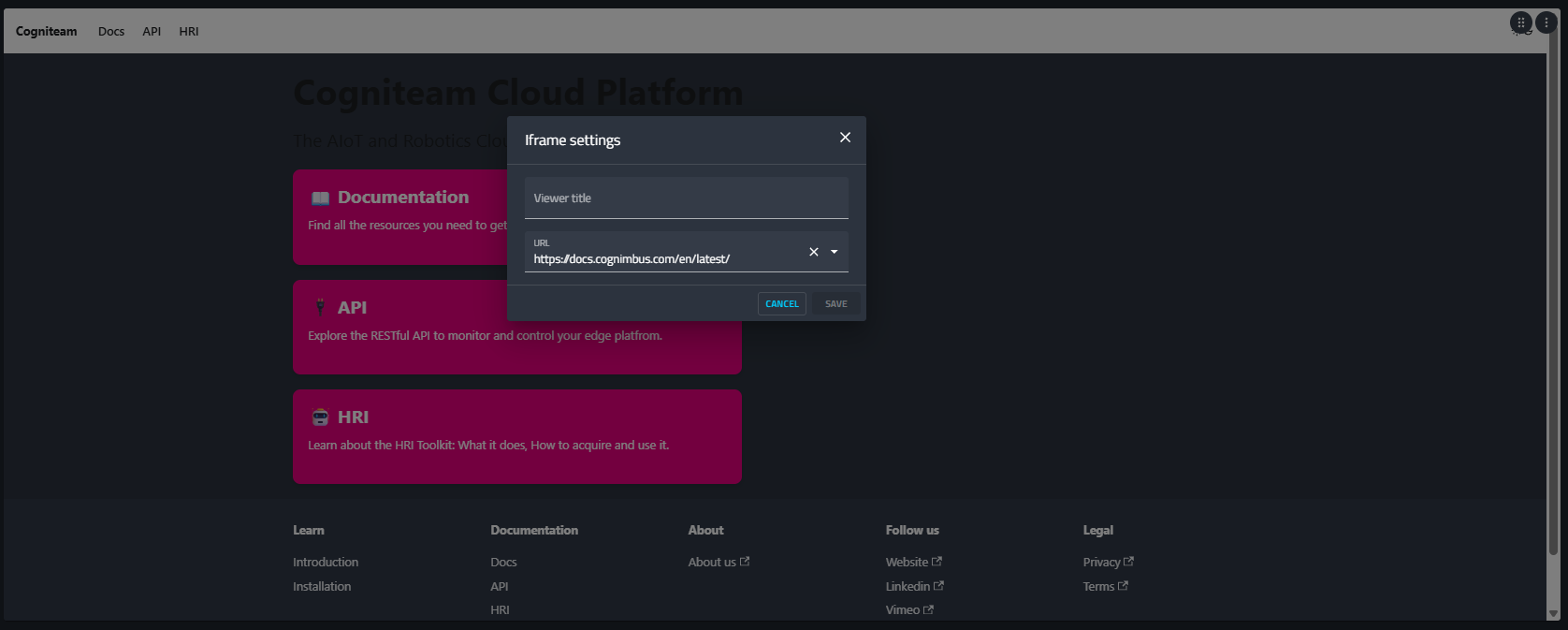
To ensure secure and controlled display of external content, you must first authorize URLs at the organization level before they can be selected in the viewer.
1. Authorize URLs
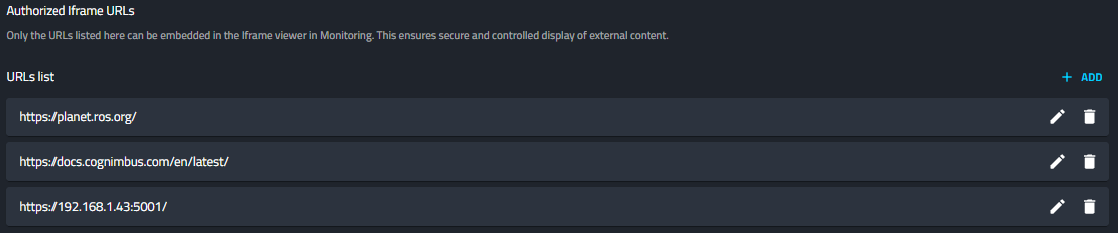
- Navigate to your Organization Account Page.
- Locate the Authorized Iframe URLs section.
- Click + ADD to include a new URL in the allowlist.
- Enter the full URL (e.g.,
https://docs.cognimbus.com/en/latest/or a local IP likehttps://192.168.1.43:5001/). - You can also Edit or Delete existing URLs using the icons next to each entry.
Only the URLs listed here will be available for selection in the monitoring dashboard.
2. Widget Settings
Once the URLs are authorized, you can configure the viewer on the Monitoring Page:
- Add the iFrame widget to your layout.
- Open the Iframe settings dialog.
- Viewer title: Give the viewer a custom name.
- URL: Select a pre-approved URL from the dropdown menu.
- Click SAVE to apply the changes.