Organization
Considering using this system in your organization ? Contact sales@cogniteam.com.
The Organization Account section is the central hub for managing your organization's settings, team members, and robot licenses. It provides a high-level view of resource quotas and security configurations.
There are two primary ways to access your organization settings:
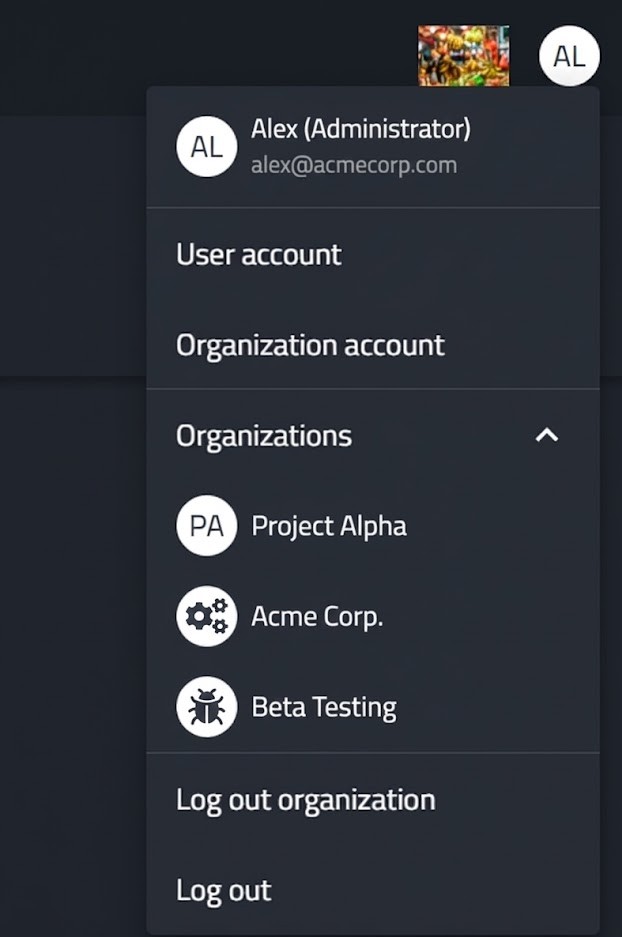
- From the User Menu: Click your user avatar (top right corner) and select Organization account from the dropdown menu. You can also switch between different organizations using the Organizations collapsible list in this menu.
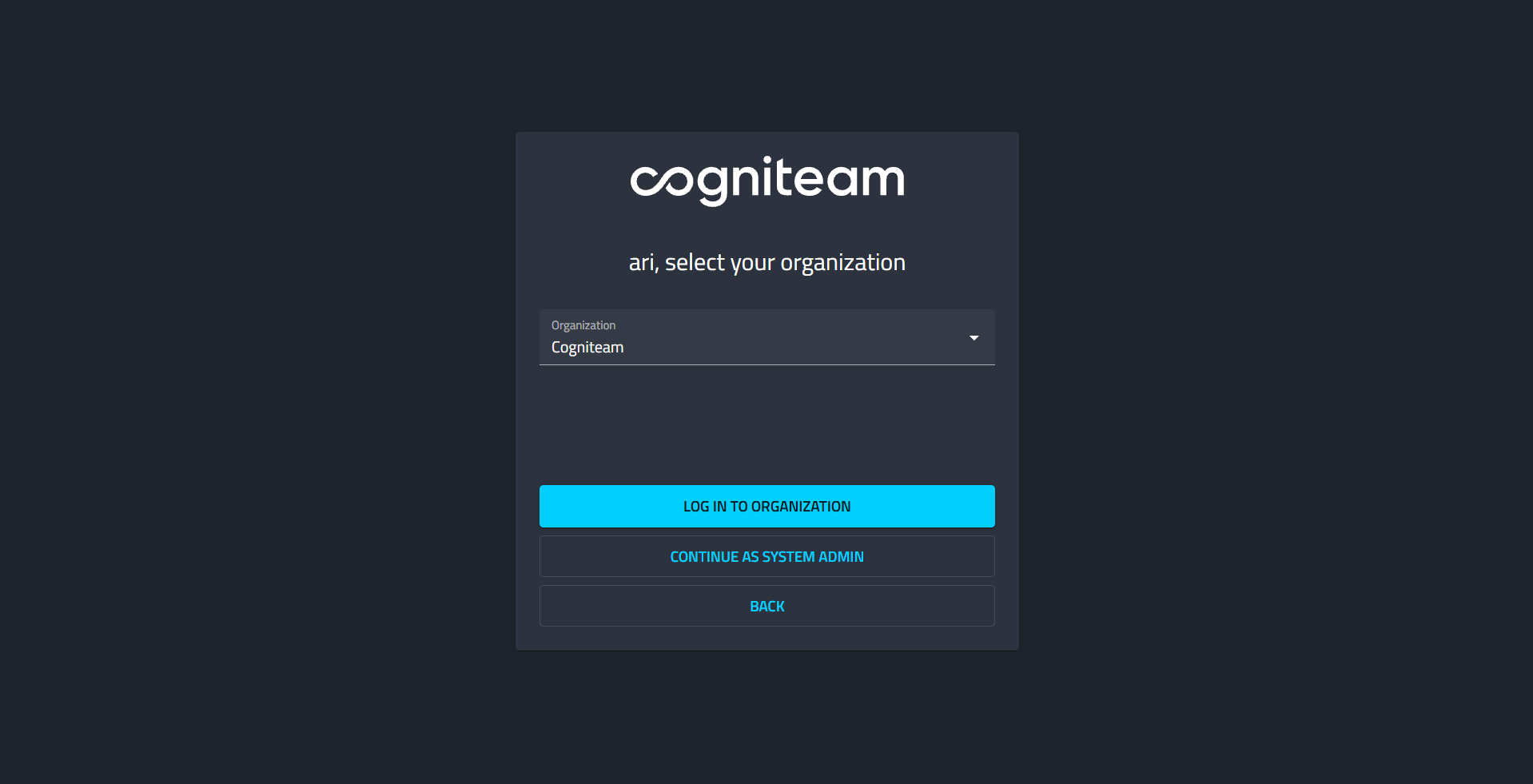
- Upon Login: During the login process, you may be prompted to "Select your organization" if you belong to multiple entities.
Profile Tab
The Profile tab is the landing page for organization settings. It handles branding, resource monitoring, and installation configurations.
Use the drop down next to your user and choose Organization Account
General Settings
- Organization Logo: You can customize the platform look by clicking Change to upload a new logo or Remove to delete the current one.
- Organization Name: Click Edit to update the display name of your organization.
Notifications Quota
This section displays the aggregate usage of notification resources across all robots in the organization.
- Usage Bars: Visual indicators show the consumption of SMS, WhatsApp, and Email allowances.
- Note: These quotas are set at the organization level. Individual robot licenses contribute to this pool, but the limit applies globally. To increase these quotas, you must contact your account representative.
Automated Agent Installation
This tool generates the necessary installation script to connect multiple robots using the same install link to the Cogniteam Cloud.
- Select License: Choose a valid license from the dropdown menu (e.g., "Pro - 4 licenses").
- Run Command: A code snippet (using
sudo wget) is automatically generated. Click the Copy icon and run this command on your robot's terminal to install the Agent.
Authorized Iframe URLs
Manage security for external content displayed within the platform (specifically the Iframe viewer in Monitoring).
- Add URL: Click + ADD URL to whitelist specific domains. Only URLs listed here can be embedded, ensuring secure display of external content.
Licenses Tab
The Licenses tab provides a detailed inventory of all subscription plans and robot entitlements available to your organization.
Managing Licenses
- Search & Filter: Use the search bar or the quick filters (All, Expired, Not expired, Assigned, Not assigned) to locate specific licenses.
- License Table: Displays critical data for each license:
- Status: Visual icons indicate if a license is active (green check) or expired/invalid (red 'X').
- Assigned to: Shows the specific robot currently using the license.
- Usage Metrics: Tracks consumption against limits for Storage, Traffic, SMS, WhatsApp, and Email.
- Expiration: Displays the "Expires on" date to help you plan renewals.