Files
Use the Files page to manage non-recording resources uploaded from a robot, local Agent UI, or cloud storage sync.
Files are separate from the Recordings page. Use Recordings for video, event, and CSV recording timelines, and use Files for additional resources such as logs, exported data, maps, meshes, and manually uploaded artifacts.
Upload Files
From the Files tab, upload files that should be stored with the robot resources.
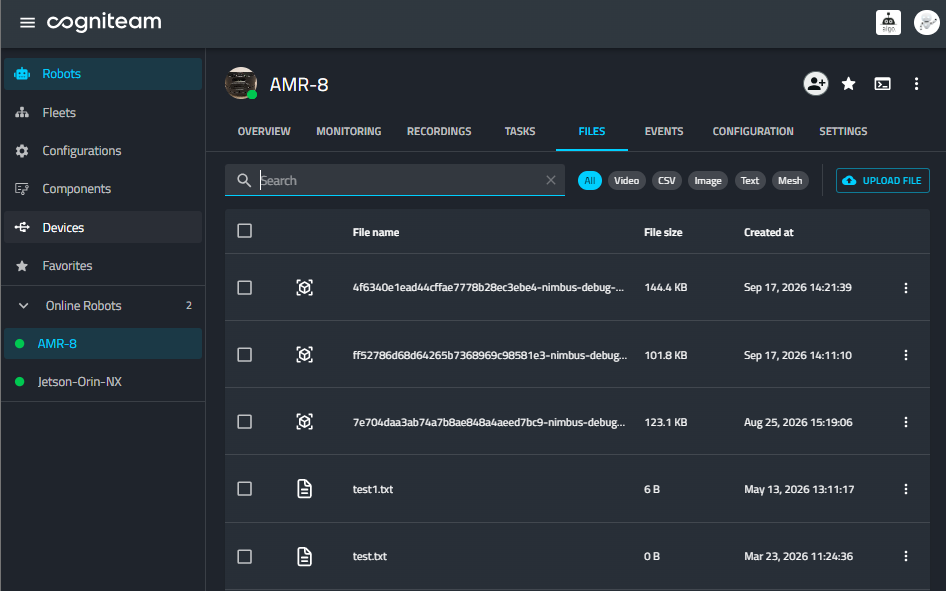
Use the file-type filters to narrow the list by resource type, then click Upload File to add a new file to the robot resources.
Uploaded files preserve:
- The original filename.
- Download links for each resource; content replacement can create a new resource and link.
- File metadata.
- File-type filtering used by the resource selector.
Edge-to-Cloud File Sync
Use /var/lib/nimbus/files/resources/ as the robot's writable Files folder. Paste completed files,
edit their contents, or delete them to synchronize those changes with Nimbus Cloud. Local Agent
uploads and cloud downloads use the same folder. Files stay locally after synchronization.
Sync accepts top-level regular files after unchanged observations ten seconds apart. Subfolders,
symbolic links, and .tmp, .partial, or .lock files are skipped. Identical contents share one
resource. An edit uploads and confirms a replacement before retiring previous cloud content;
replacement is not atomic and can change cloud resource IDs and download links.
Automatic checks run every randomized 2–5 minutes, with additional checks on startup, reconnect,
and folder changes. Use Nimbus File Sync or nimbus file sync for a manual maintenance cycle.
nimbus file status reports eligible local/cloud Files, presence, transfer states, errors, and
whether cloud inventory is fresh, stale, or unknown. Unknown inventory does not mean cloud is empty.
Ordinary files in /var/lib/nimbus/data/ follow the recording storage provider: SystemCloud adopts
them directly into resources, AWS uploads them to its configured S3 bucket, and RobotDisk retains
them. Data discovery can wait one minute for stable files. Recording-owned and uncertain files
stay with their existing owners. Configured Nimbus paths can change these default locations.
Storage Cleanup
File syncing and cleanup coordinate with active uploads. This prevents the Agent from deleting local files while they are still being prepared or uploaded.
In AWS storage mode, the Agent verifies file size and content before removing a matching local file after upload.
Using Files in Viewers
Robot files can be selected by Monitoring viewers that support file-backed resources. For example, the 3D Viewer can use mesh and CSV files from the robot without requiring the operator to type a file path manually.