Mission and task management
Task management lets you configure and run workflows on a robot from the Tasks tab. Each task contains an ordered sequence of subtasks and one or more triggers that determine when it runs.
Use tasks to automate navigation, execute scripts, publish ROS messages, and perform maintenance operations.
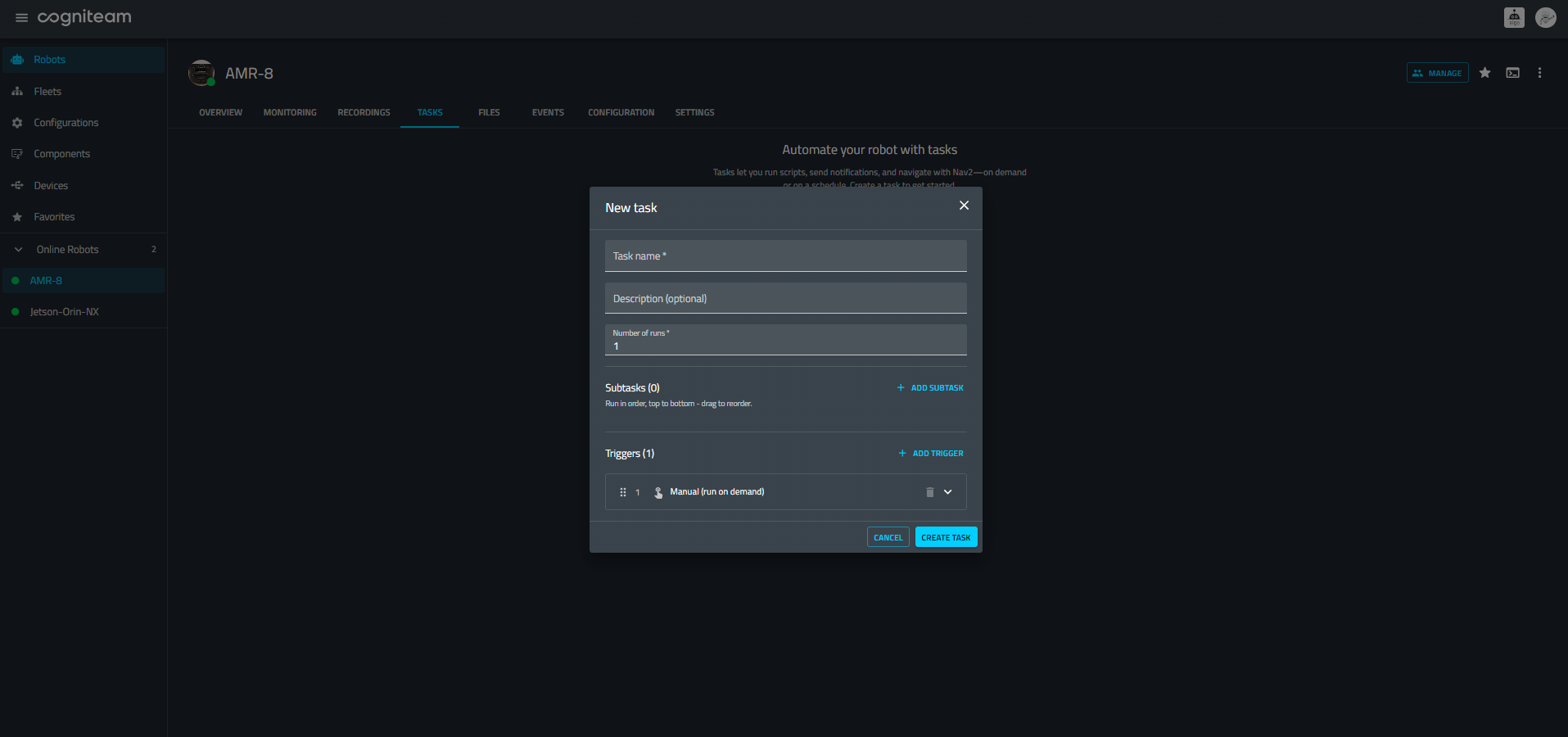
Creating a task
- Open the robot's page and select Tasks.
- Click Add.
- Enter a Task name and an optional Description.
- Set Number of runs to configure how many times the sequence should execute.
- Click Add subtask and configure the required actions. Subtasks run from top to bottom; drag them to change their order.
- Configure one or more triggers.
- Click Create task.
Available subtasks
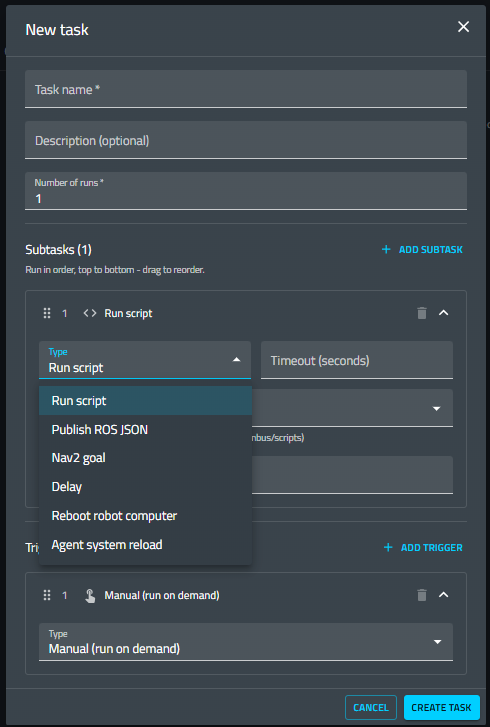
| Subtask | Description |
|---|---|
| Run script | Execute a script on the robot. |
| Publish ROS JSON | Publish a ROS message using a JSON payload. |
| Nav2 goal | Send a navigation goal to Nav2. |
| Delay | Wait for a specified duration before continuing. |
| Reboot robot computer | Reboot the computer running the robot's Agent. |
| Agent system reload | Reload the Agent system. |
Expand a subtask to configure its options. Where available, use Timeout (seconds) to set its execution timeout.
Configuring navigation
Add a Nav2 goal subtask to include navigation in a task.
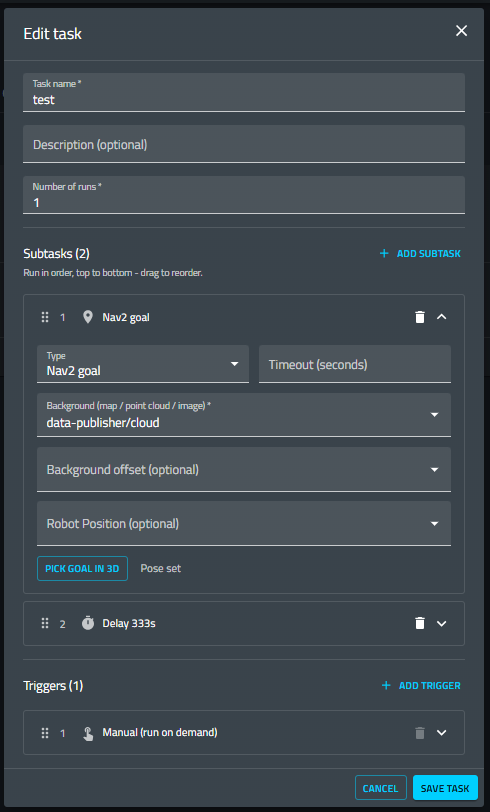
- Select a Background source: a map, point cloud, or image.
- Select Background offset and Robot Position sources if needed.
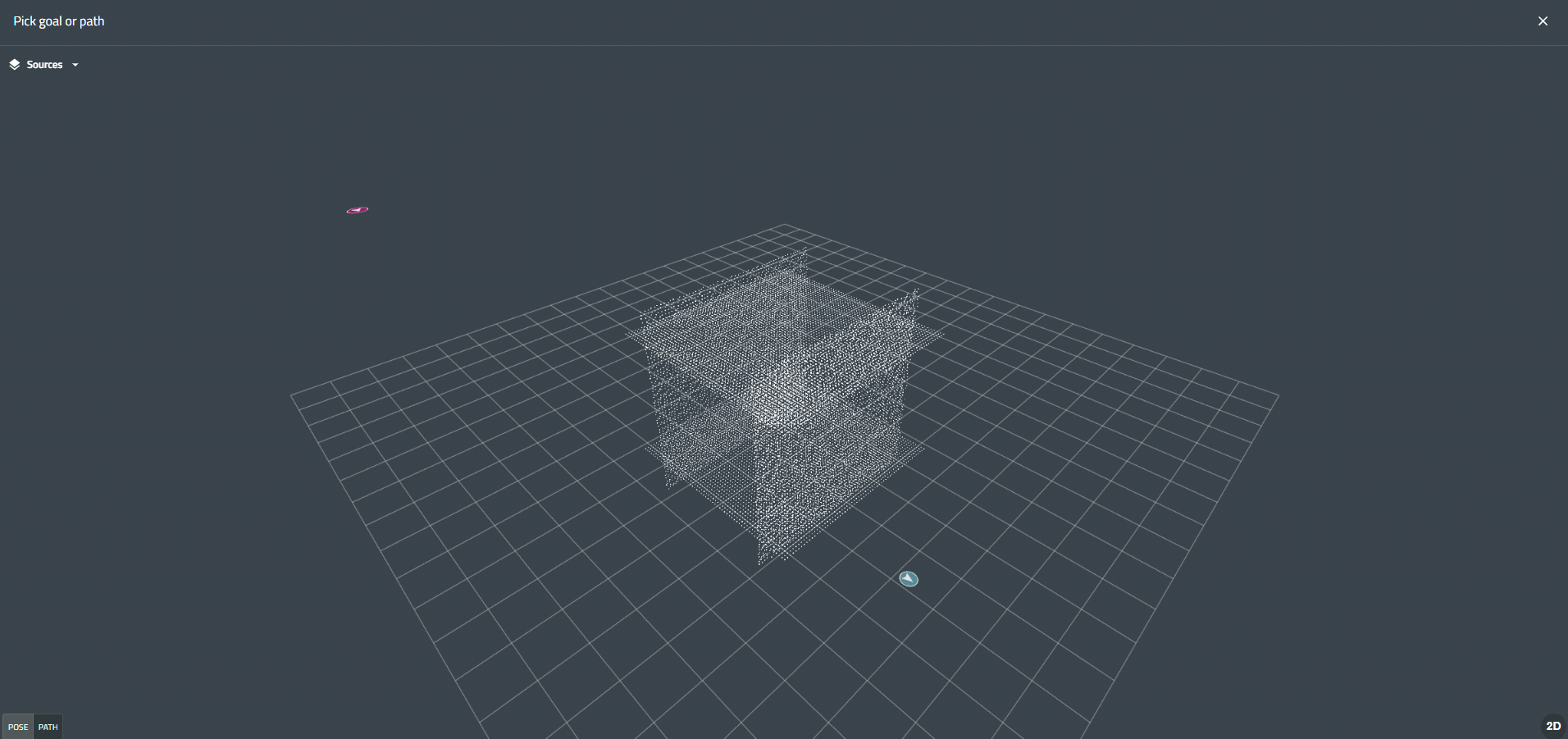
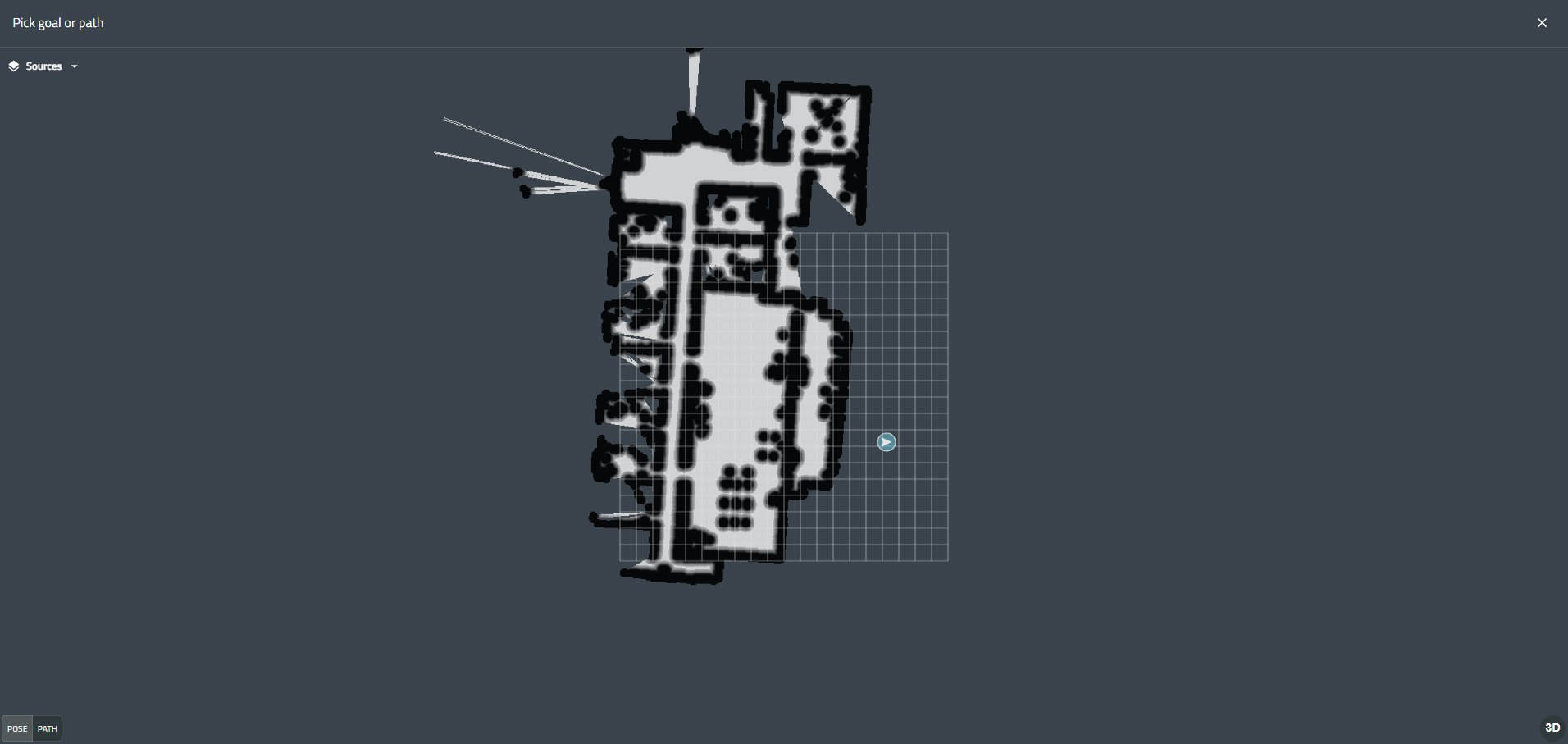
- Click Pick goal in 3D to open the navigation viewer.
- Use Pose or Path mode to define the navigation target. Switch between 2D and 3D views as needed.
The editor displays Pose set when a goal pose has been selected.
Task triggers
A task can have multiple triggers. Click Add trigger, select a type, and configure its settings.
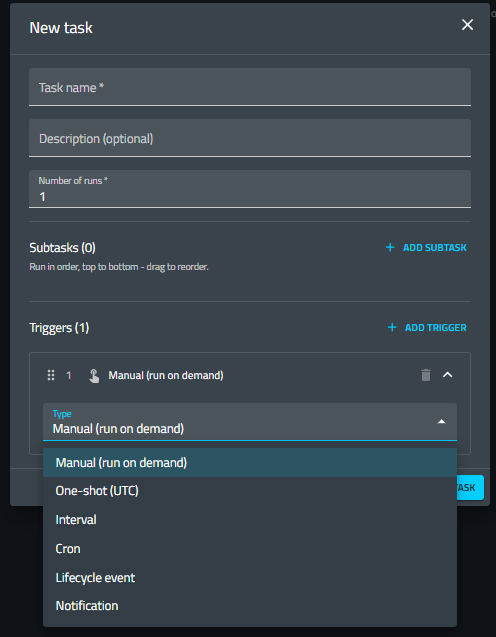
| Trigger | Description |
|---|---|
| Manual (run on demand) | Start the task using its run button. |
| One-shot (UTC) | Run the task once at a specified UTC date and time. |
| Interval | Run the task at a recurring interval. |
| Cron | Run the task according to a cron schedule. |
| Lifecycle event | Start the task in response to a configured lifecycle event. |
| Notification | Start the task in response to a configured notification. |
Managing tasks
The Tasks tab displays each task's triggers and ordered subtasks.

Use the controls on a task card to:
- Enable or disable the task.
- Start a task manually using the play button.
- Edit its configuration and click Save task.
- Delete the task.
Use the All, Running, Enabled, Disabled, and Failed filters to narrow the list.
For example, create a task with a Nav2 goal, followed by a Delay, and then a Run script subtask to navigate to a location, pause, and execute a script.
For command-line task import, export, and validation, see the Task Manager CLI.