Fleet operation
The Robots table enbales to monitor all your robots in one place. You can toggle between a “List View” and a “Map View”. Use the top left “CREATE NEW ROBOT” button to create a new robot. When you’ll have many robots, use the search bar to find any specific robots you are looking for.
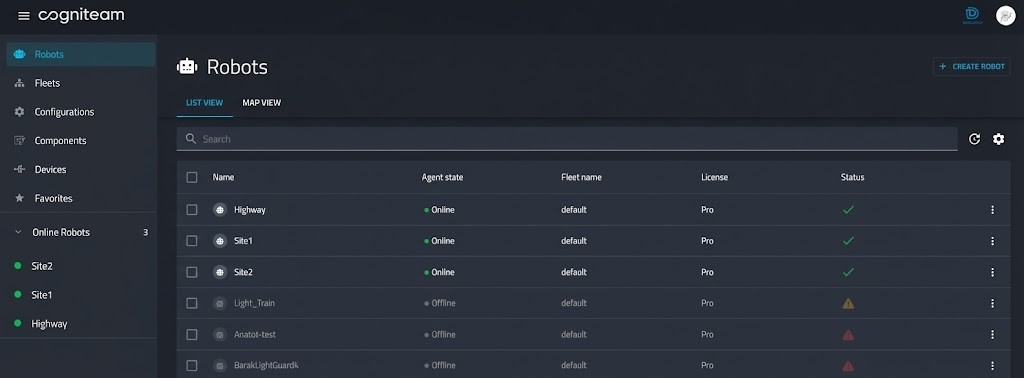
The Online Robots prioritize online robots relevant to the current user. The robots appear in the table below. Each robot displays the following general information:
| info | description |
|---|---|
| Name | The name you chose for the robot |
| Role | Your assigned role on this robot. It can either be an operator, a developer, or an administrator (we’ll explore it later). |
| Fleet | Which fleet the robot is currently assigned to. By default, you already have a “default fleet” your robot is assigned to. |
| Last Seen | “Online” if the robot is currently online, or the last time and date it appeared connected to the Cogniteam Cloud Platform |
| License | The license you chose for this robot; expired licenses are visually highlighted so you can act on them quickly. |
| General Information | Current usage of CPU, Memory, Disk, and Cloud resources. |
| 3 dot menu | This allows a shortcut for applying batch operations such as assigning a configuration, moving the robot to another fleet or organization, or deleting robots. You can also apply a Monitoring Preset to multiple robots directly from the table. |
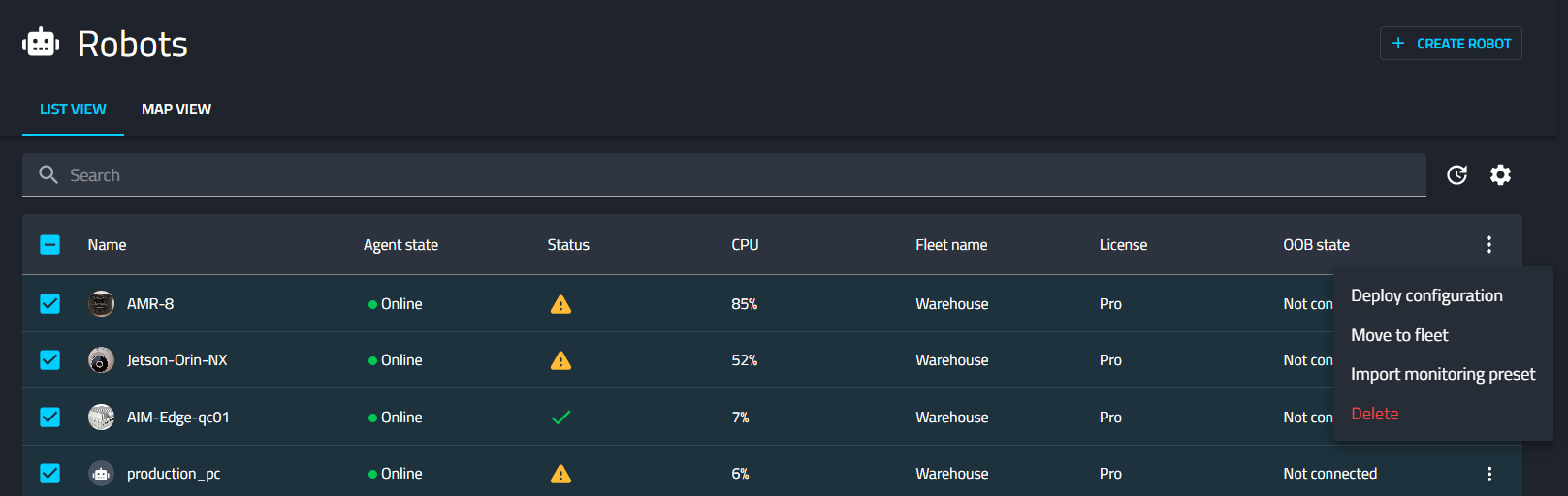
Clicking on a robot from the list will transfer you to the page of this specific robot Robot Overview Page.