Overview Tab
The Overview Tab provides a comprehensive summary of a robot's key details, enabling users to manage and monitor its state efficiently. It includes various controls, widgets, and access points to essential robot functions.
Robot Details and Actions
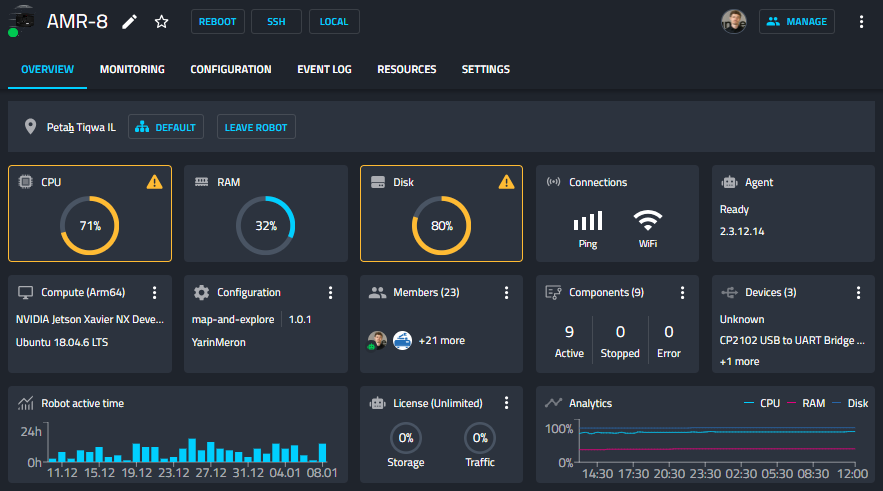
At the top left corner, you can see your robot’s name. From this section, you can:
- Rename the robot: Click the pencil icon to update the name.
- Add to favorites: Click the star icon to mark the robot as a favorite for quick access.
Quick Actions
Directly beneath the robot’s name, you’ll find buttons for performing key remote actions:
-
Reboot
Reboots the robot’s operating system. -
SSH
Opens a Remote Terminal window in a new tab, enabling you to perform direct system operations on your robot, such as:- Running Agent CLI commands (discussed here).
- Executing ROS commands.
- Performing other OS-level operations.
-
Local Access
Launches a local web server hosted by the robot. You can log in to this server if you are on the same local network.
This interface provides access to most system features and is especially useful when remote cloud access is unavailable.
Overview Header
The top section of the overview tab includes basic robot metadata:
- Robot's Location: Displays the current or last known location.
- Last Seen Timestamp: Indicates when the robot was last active.
- Assigned Fleet: Shows which fleet the robot is assigned to.
- Leave Robot Option: Allows you to remove the robot from its fleet.
Widget Area
The Overview page includes several ready-made widgets to monitor robot KPIs such as CPU, RAM, disk usage, and more. These widgets can be customized via the settings cog in the header.
When a robot is offline, Active Time and analytics widgets provide tooltips to clarify what the displayed values represent.
Configuration Widget
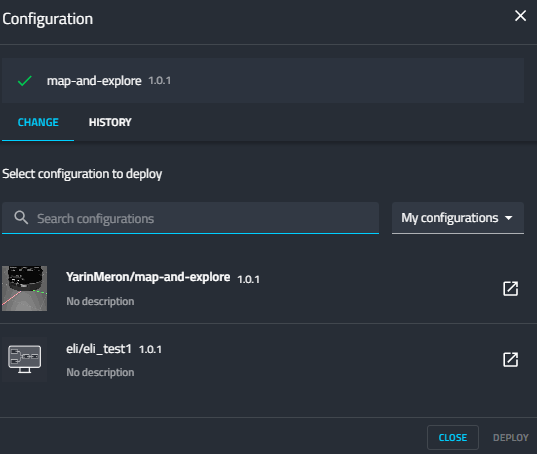
Clicking this widget opens a Configuration popup window:
- Current Configuration: Name and version of the installed configuration.
- Configuration History: View previously deployed configurations.
(See more in the Configuration Tab section.)
Components Widget
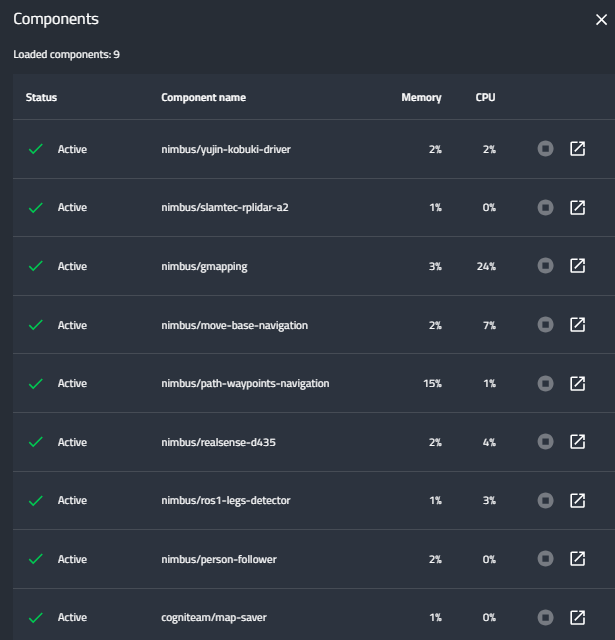
This widget opens the Components popup window:
- Manage dockerized processes (components) like drivers and algorithms.
- Start / Stop / Restart each component as needed for debugging or updates.
Devices Widget
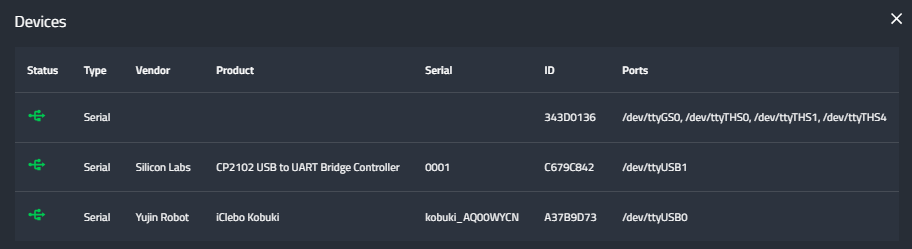
This opens the Devices popup window:
- View and manage connected hardware.
- Useful for troubleshooting device issues or verifying connections.
User Management
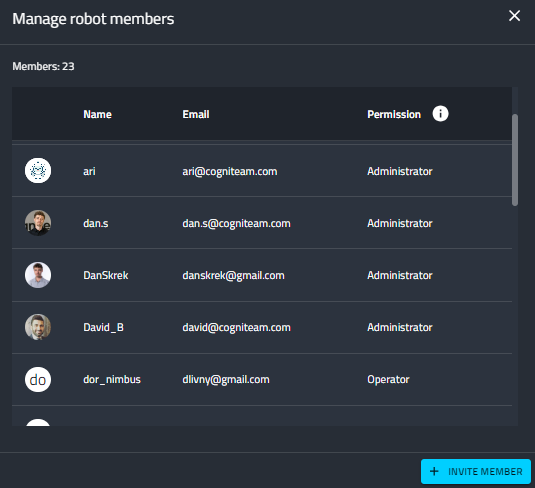
In the top-right corner, view all users currently connected to the robot. Click Manage to:
- See user roles.
- Invite others to collaborate.
Roles Overview
- Operator: Control/view shared robots and data; limited config control.
- Developer: Configure robots; view data; limited user management.
- Administrator: Full control over configurations, permissions, and sharing.
Tabs Overview

The Overview Tab is the default tab, but others exist for:
- Monitoring
- Robot Settings
- Event Logs (now with richer coverage of system and robot events)
- Resources
- And more...
Next Steps
Move on to the Monitoring page for additional capabilities and insights.