Promo Code
We have introduced a streamlined way to unlock robots using promo codes provided by our partners. If you received a code from a hardware vendor or an academic partner, follow this guide to quickly register your robot on the Cogniteam platform.
Step-by-Step Guide
1. Start a New Robot
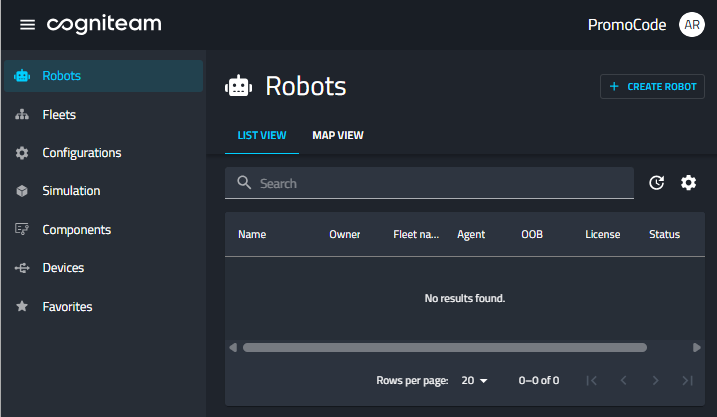
Navigate to the Robots tab in your dashboard and click the + CREATE ROBOT button in the top-right corner.
2. Name Your Robot
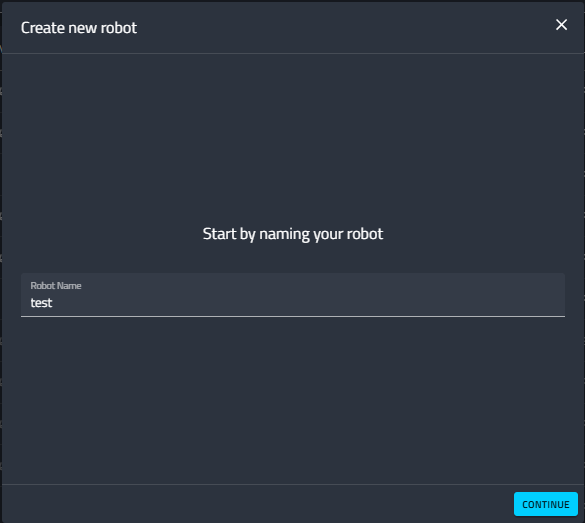
Enter a unique name for your robot. This name will be used to identify the robot across your fleet. Click CONTINUE to proceed.
3. Select Promo Code Option
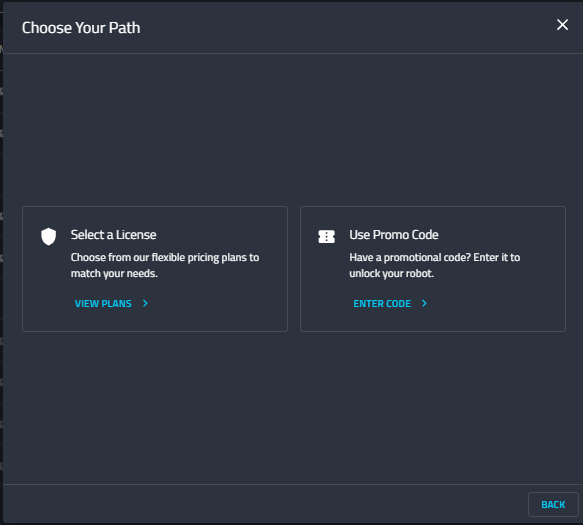
You will be presented with two options. Select the card on the right labeled Use Promo Code.
Select this option to bypass standard licensing plans using your partner code.
4. Enter Your Code
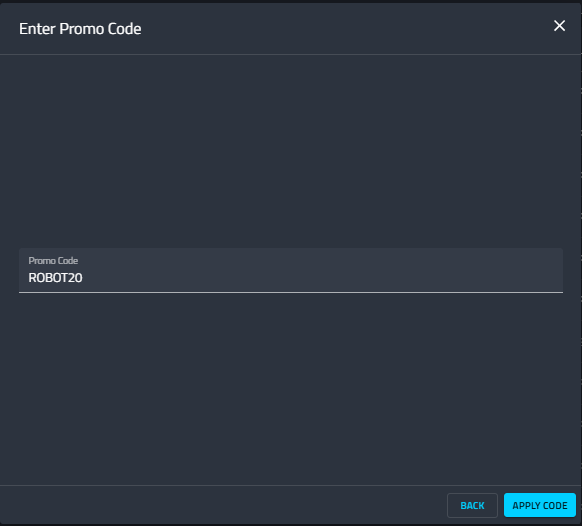
Type the promo code provided by your partner (e.g., ROBOT20) into the input field and click APPLY CODE. The system will instantly validate your code.
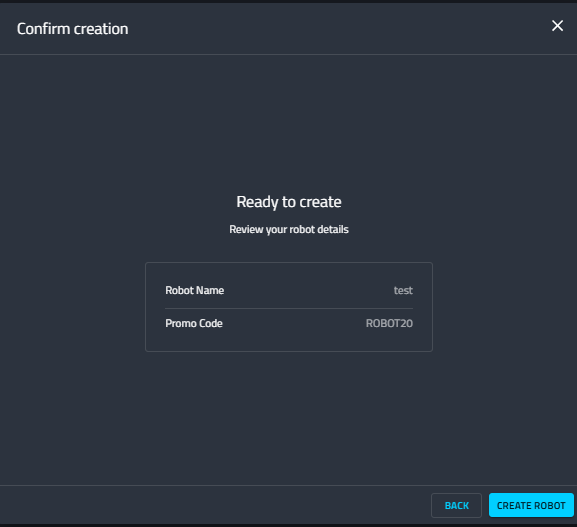
5. Confirm and Create
Review the details on the final screen. Verify that the Robot Name is correct and the Promo Code has been applied successfully.
Click CREATE ROBOT to finalize the setup.
What's Next?
Now that your robot is created in the system, choose how you want to connect and manage it:
Option 1: Install the Cogniteam Agent (Recommended)
Download and install the Cogniteam Agent directly on your robot’s edge device. This creates a secure connection to the cloud.
- Best for: General use, telemetry collection, real-time monitoring, and remote management.
- 📄 Read the Agent Installation Guide
Option 2: Connect via Out-of-Band (OOB) Device
If your hardware supports it, use your OOB management device's Serial Number to pair it with the cloud.
- Best for: Remote power management, firmware updates, and low-level access to boot configurations and logs.
- 📄 Read the OOB Guide
Option 3: Deploy Software
Once your device is connected (via Option 1), you can immediately begin deploying software configurations.
- Best for: Setting up sensors (like RealSense), drivers, and algorithms.
- 📄 Read the Deployment Guide
If you encounter issues redeeming your code, please contact our support team.