Deploy
This guide explains how to easily deploy software configurations to supported hardware devices. If you are using a specific Promo Kit or own a supported device (such as the RealSense D457), follow the steps below to get started immediately.
Intel RealSense D457
1. Select the Configuration
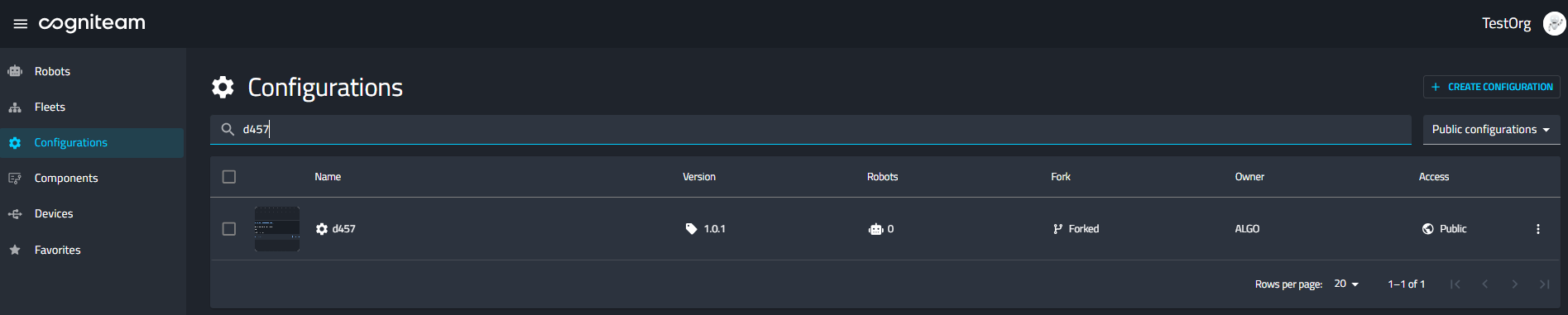
Navigate to the Configurations tab in the sidebar. Ensure you are viewing Public configurations, then search for d457.
Select the d457 configuration from the list.
2. Deploy to Robot
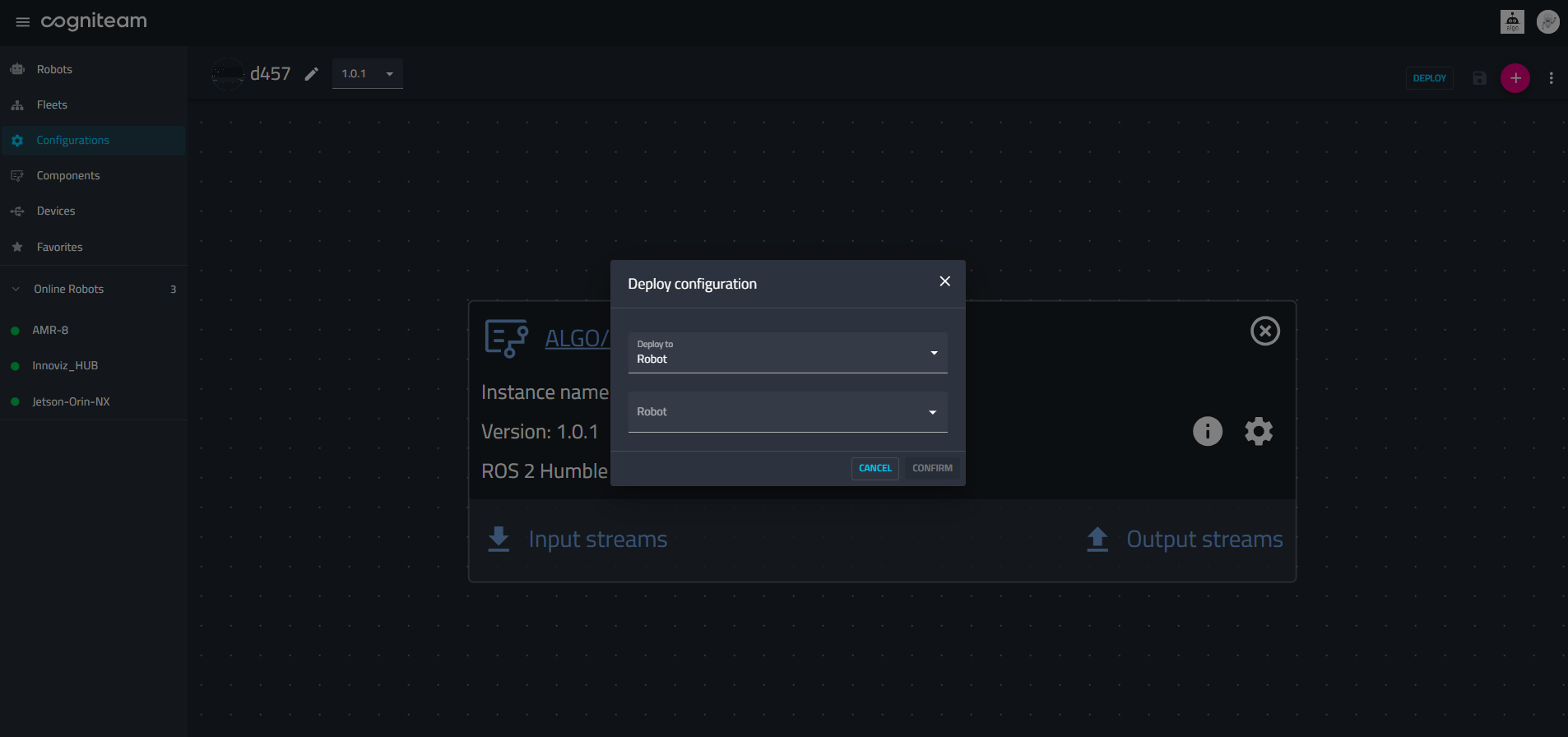
Once the configuration is open, click the Deploy button in the top right corner.
In the popup window:
- Select Robot from the dropdown menu.
- Choose your specific connected robot.
- Click Confirm.
3. Import Monitoring Preset
To visualize the data, you need to set up your monitoring dashboard. First, download the pre-configured layout file below:
📥 Download Robot-preset-Realsense.json
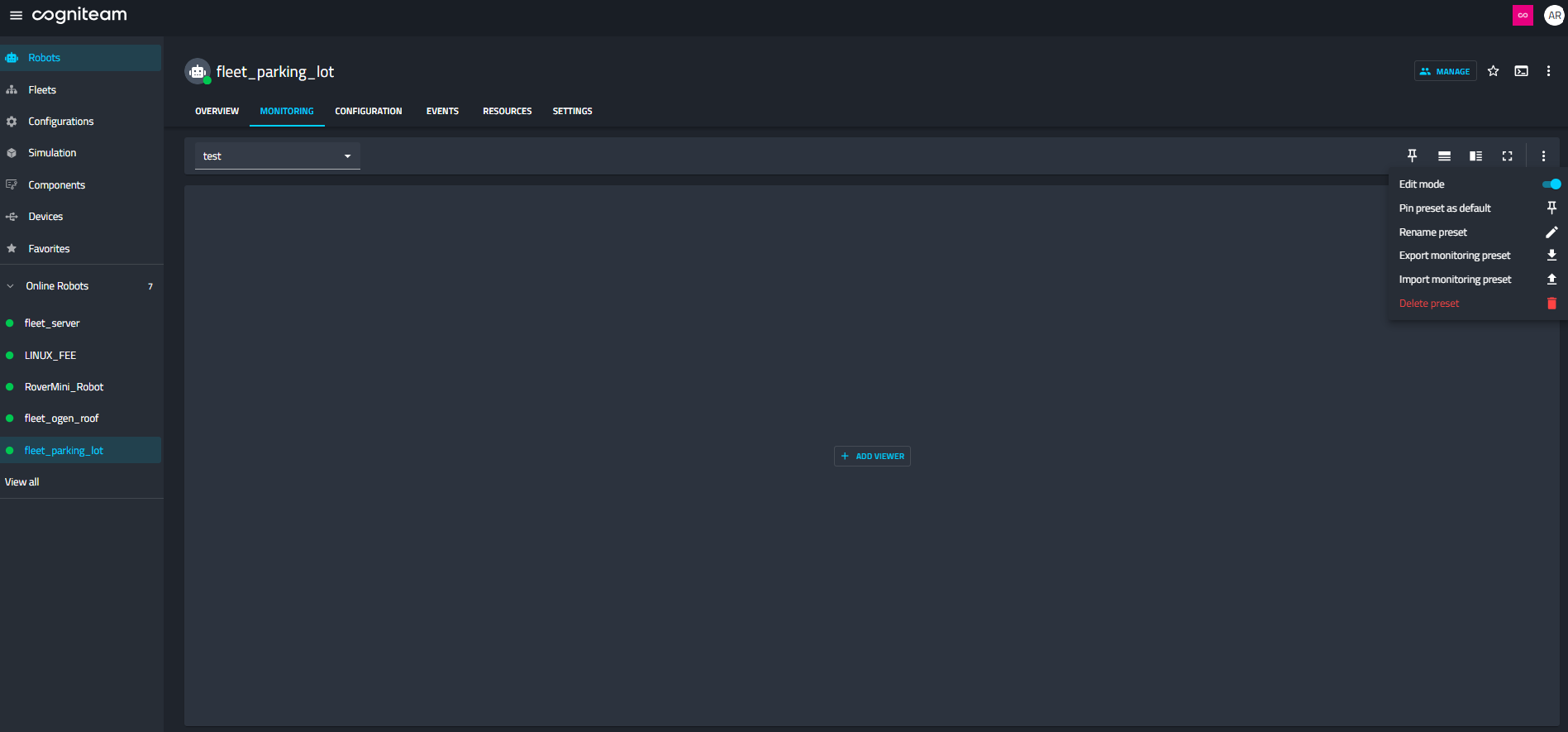
Next, go to your robot's Monitoring tab. Click the menu icon (three vertical dots) in the top right corner and select Import monitoring preset. Upload the JSON file you just downloaded.
4. Verify Data Stream
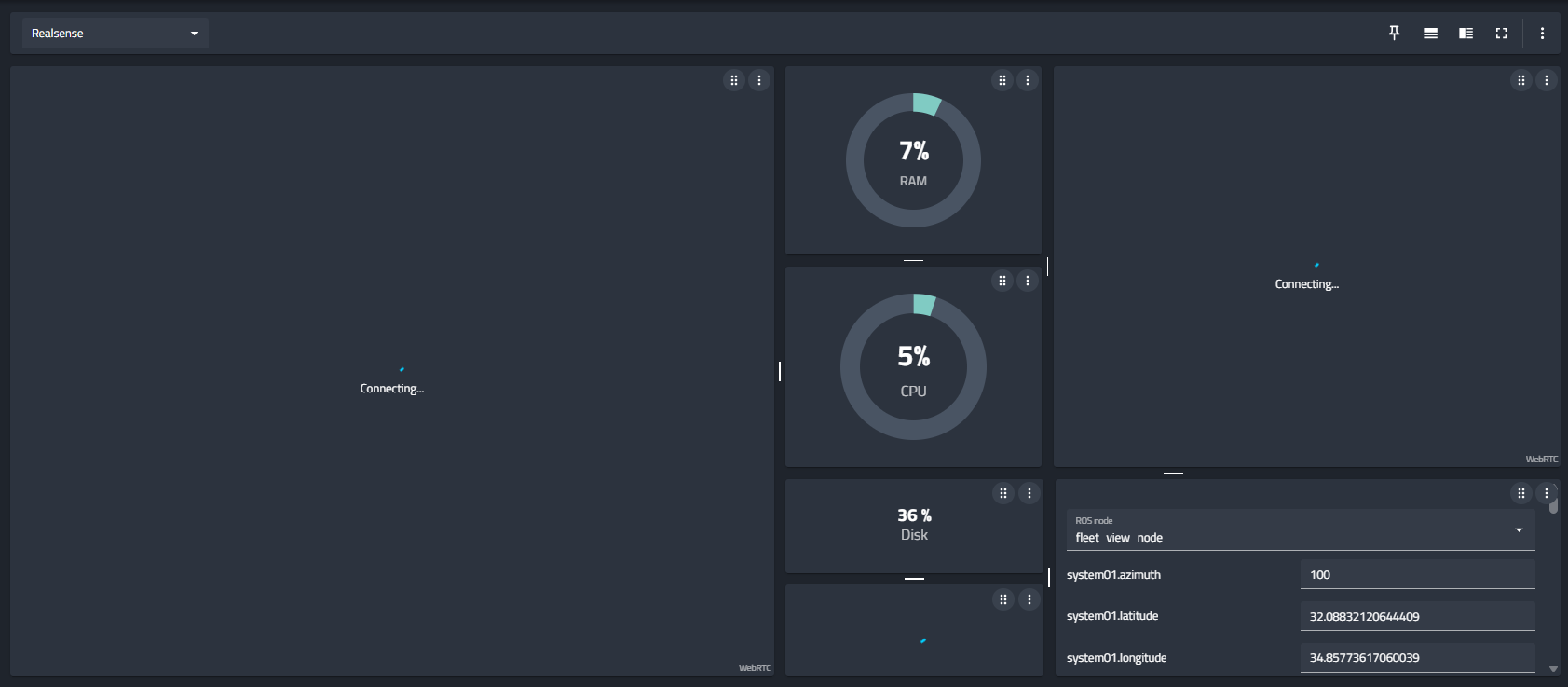
Once imported, your dashboard will automatically update to show relevant widgets. You should see system metrics (RAM, CPU) and the visual feed from the RealSense camera, confirming the deployment was successful.