Connect
Once you are signed in, follow these steps to create a new device (we call it robot):
1. Start a New Robot
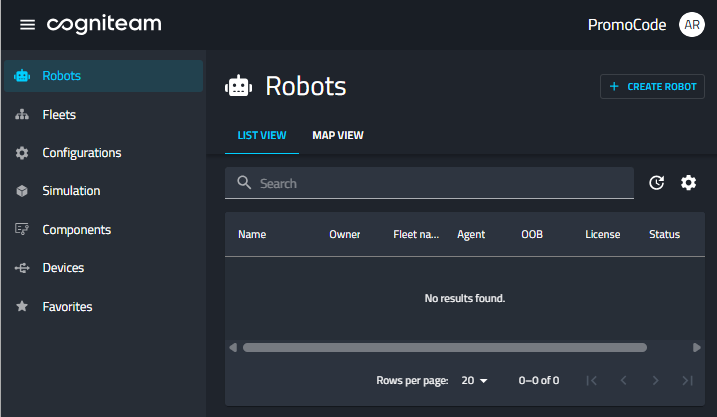
Navigate to the Robots tab in your dashboard and click the + CREATE ROBOT button in the top-right corner.
2. Name Your Robot
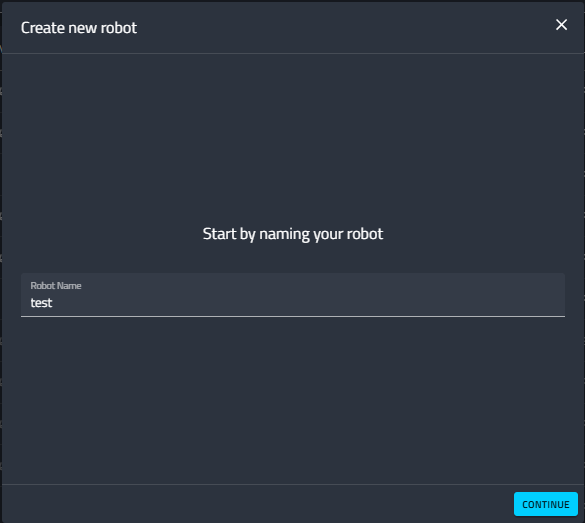
Enter a unique name for your robot. This name will be used to identify the robot across your fleet. Click CONTINUE to proceed.
3. Select License Option
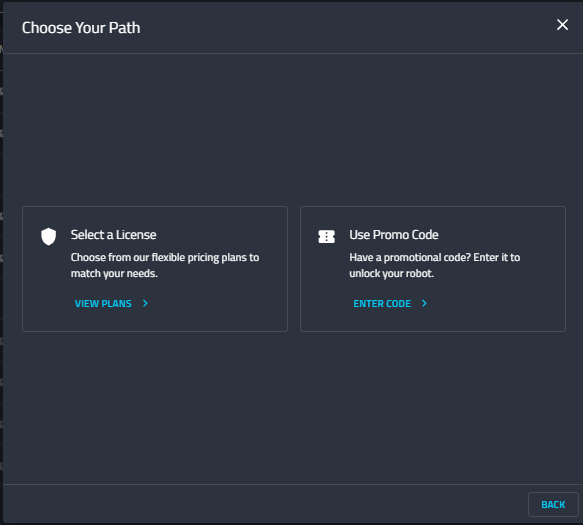
You will be presented with two options. Select the card on the left labeled Select a License.
4. Select Your Plan
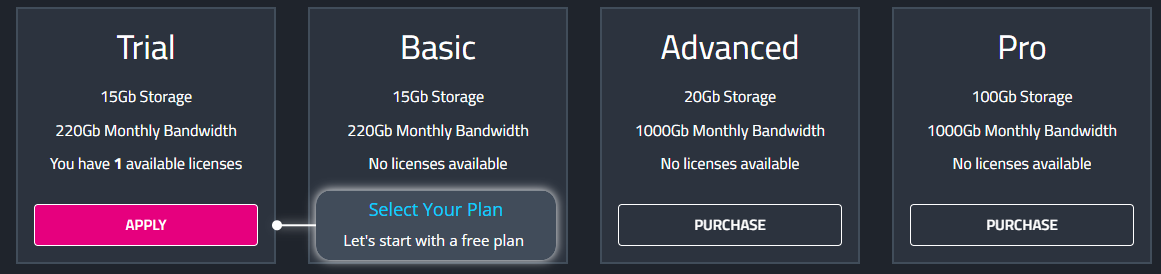
Choose the plan that best suits your requirements.
5. Confirm and Create
Click Create to finalize your choices and start the robot creation process.
✅ Success!
Congratulations! You have successfully:
- Signed up
- Created a new robot
- Customized its initial settings
Next Steps
After creating your robot, you can choose how to connect and manage it:
Option 1: Connect via OOB (Out-of-Band) Device Management
- Use your existing OOB management device Serial Number to register and manage it from the cloud (connect and pair).
- This option is recommended if you require remote power management, firmware updates and low level access to boot configurationa and logs.
- Read more in the OOB section
Option 2: Install Cogniteam’s Agent on the Edge Device
- Download and install the Cogniteam Agent directly on your robot’s edge device.
- The agent provides:
- Secure connectivity
- Telemetry collection
- Real-time monitoring and control
- Remote management from the Cogniteam Cloud
- Additional advanced features
- Read more in the Agent section
➡️ Choose the option that best matches your setup.
If you are unsure, we recommend starting with Cogniteam’s Agent installation for the simplest onboarding.