Recordings
This guide documents how to configure video and data recording sources in the Cogniteam Cloud and how to control them using the Agent CLI. Recordings on the edge can use a DVR mechanism.
Why DVR matters
The Cogniteam Agent embeds a DVR-style recorder that keeps context around every event. Auto-start capabilities paired with 30-second pre/post buffers let you capture the moments leading up to and following an incident without keeping every stream running all the time. You can trigger recordings manually, via rules, or rely on the auto-record option described below.
Navigate to Robots > [Robot Name] > Settings > Recordings to manage your recording sources.
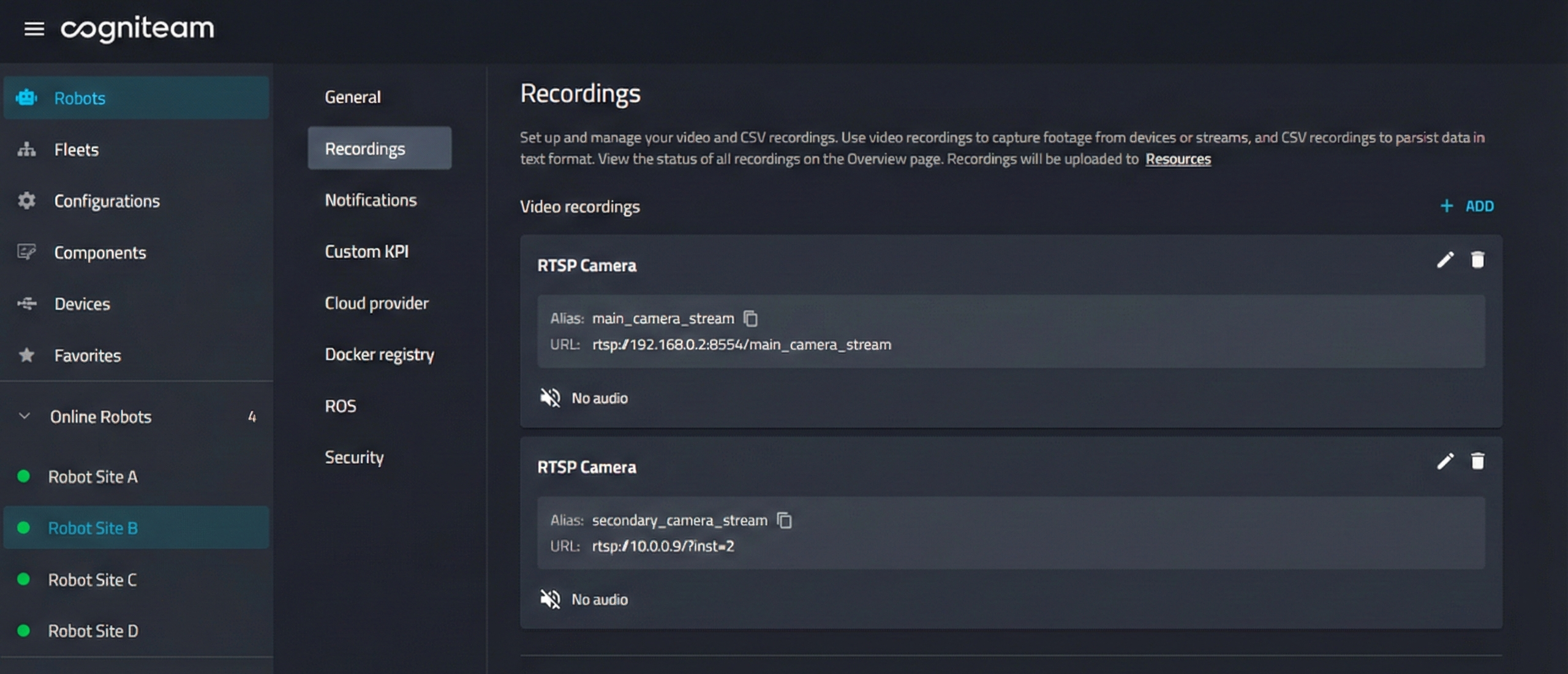
Video Recordings
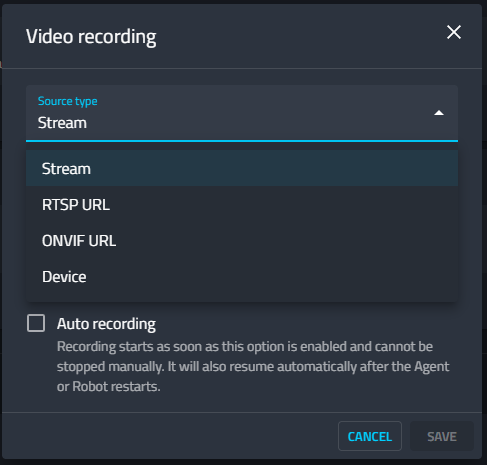
You can add video sources using four different methods:
- ROS stream
- RTSP
- ONVIF
- USB device
General Options:
- Alias: A unique name for the recording profile (e.g.,
lidar_video,usb_cam). Required for CLI control.- Auto recording: If checked, recording starts automatically when the Agent/Robot starts. In such a case recordings will be continously uploaded to the cloud using chunks of 15-30min depending on the video quality. When no space is left in the cloud data will be rotated based on space constraints.
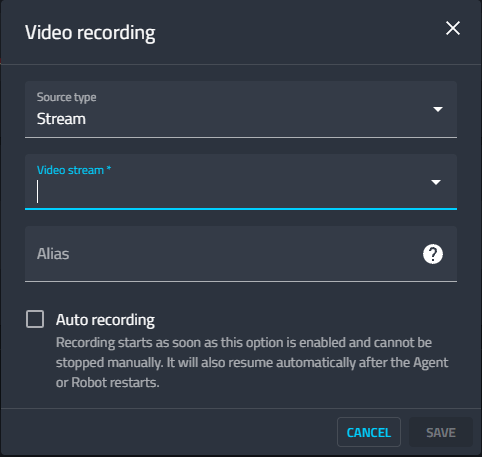
ROS1/2 Stream
Select from existing ROS1/2 video streams already recognized by the robot's internal system.
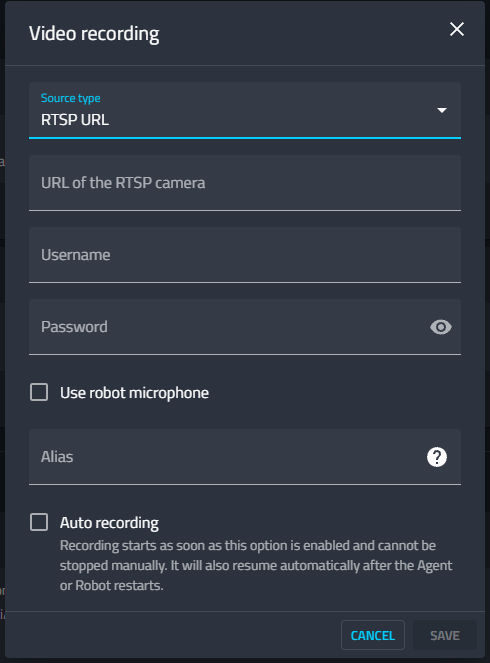
RTSP
- Connect directly to an IP camera stream.
- Input: RTSP URL (e.g.,
rtsp://192.168.0.2:8554/feed), Username, Password.
ONVIF
- Connect to ONVIF-compliant security cameras for standardized control.
- Onvif supported devices on the LAN will be automatically recognized
- Input: ONVIF URL, Username, Password.
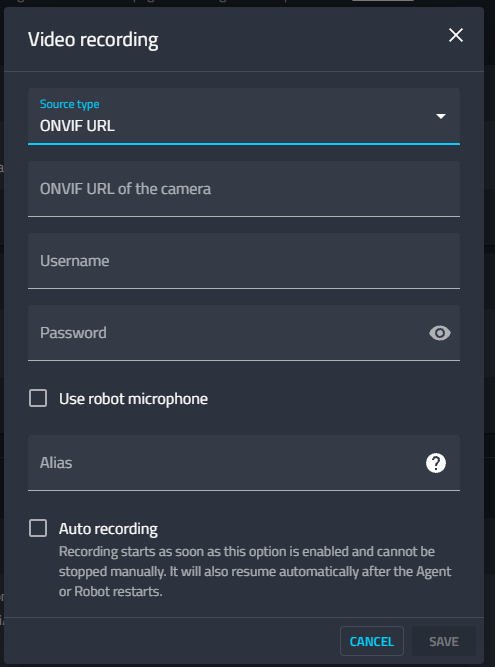
USB Device
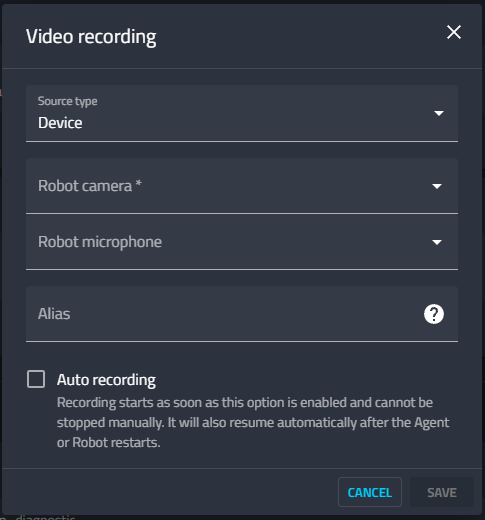
- Select physical USB devices directly connected to the robot.
- Configuration: Select the specific "Robot camera" and optional "Robot microphone" from the dropdowns.

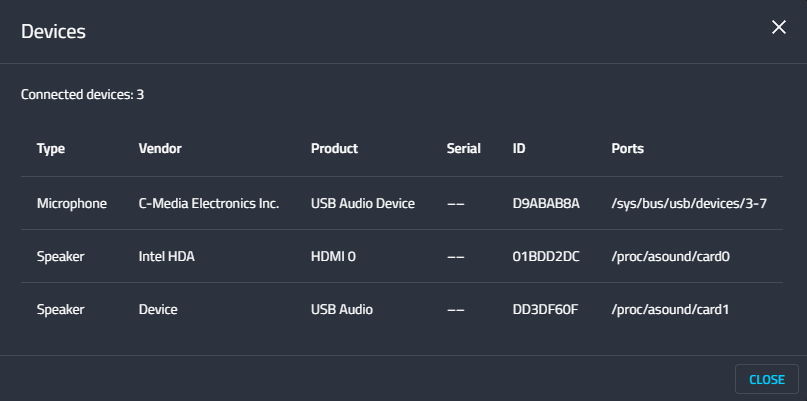
- Prerequisite: Devices must be recognized by the robot OS. You can verify connected hardware (Cameras, Microphones, Speakers) in the Devices section of the robot overview page.
DVR Event Buffering (Smart Recording)
When a recording event is triggered, the DVR system uses a buffering mechanism to capture context.
- Pre-Event Buffer: The system captures the 30 seconds immediately preceding the start trigger.
- Post-Event Buffer: The system continues capturing for 30 seconds after the stop trigger is received.
This ensures that the final video file includes the full context of the event, not just the moment the command was issued. Combine buffering with rule-based triggers for completely hands-free capture.
Use the Cogniteam Agent CLI to trigger or monitor recordings defined in the cloud and on the device. Refer to the Data Log Manager section for the complete command list and parameter descriptions.
Commands rely on the Alias defined in the Cloud Configuration section and support recording at once with a single alias multiple combination of streaming sources.
Trigger or stop managed (cloud-defined) DVR recorders with the segment commands:
nimbus datalog start-segment cam01
nimbus datalog stop-segment cam01
CSV Recordings
Persist non-visual data (telemetry, diagnostics) into text/CSV format.
- Topic Configuration: Map a ROS topic (e.g.,
/lidar_motion/diagnostic) to a CSV file. - Data Mapping: Define which specific fields (e.g.,
total_voxels,current_clusters) from the ROS message are written to columns in the CSV.